I added a basic content filter and learned something nifty
January 16, 2025
Introduction
Recently I thought to myself, "Since my side project is linked on my resume and LinkedIn profile, it would probably be bad if somebody uploaded porn to it."
Content filtering is not a serious concern to me at this time because my app has no users other than myself. But with that said, it's still technically possible for a random stranger to log into topical.space, make an account and upload pictures of... whatever. So I felt a little bit nervous about tying my professional reputation to a website that allows user-generated content without a filter.
I decided to write this post because I found a solution that I think is pretty cool, since it filters content on the Google Cloud Platform side without actually requiring any code changes to my app.
Current Image Upload Process
For context, here's how image uploads currently work in topical.space:
- A user clicks Add Image or pastes an image into the text editor.
- The client calls a backend resolver called createSignedStorageURL. The backend uses its Google Cloud credentials to call the Google Cloud Storage API to create a special URL. This special URL, called the "signed storage URL", is the URL where the image will be available after it is uploaded to GCS by the client. It comes with permissions for the client to upload an image to that URL for a limited amount of time.
- The client calls the GCS API to upload the image to the signed storage URL.
Implementing the Content Filter
So I started researching automated image scanners, with the intent of trying to make it difficult for any potentially explicit user-generated content to see the light of day. I figured that since I already hosted images on GCS (Google Cloud Storage), I may as well try another Google service, SafeSearch, for image scanning.
Initial Considerations
At first I thought that when the client calls createSignedStorageURL, that should trigger an event that causes my backend app to poll the signed storage URL on GCS to see if an image was uploaded there. If it existed, then the backend would order a scan on the image at that URL. If it didn't exist, the polling would eventually time out.
But then my question was "How long should the backend poll GCS until it times out?" I didn't like the idea of setting the time to an arbitrary limit like 30 seconds or a minute, because then an image could bypass the content filter if the user had a slow connection and it took a long time to upload the picture.
The GCS Event-Based Solution
So then I asked another question: "How hard would it be to make GCS itself trigger the scan as soon as an image is uploaded?"
And the answer is, it's easy! With a few commands, it's possible to make an event get emitted to Google's event bus system when a file is uploaded to GCS. And it is also easy to use a Google Cloud Function that listens for that event and executes when that event happens.
Setting Up the Cloud Function
Since I already had the gcloud CLI installed, I set up the content filter with gcloud commands, which is a better user experience than clicking around in the cloud console.
Creating the Event Pipeline
First I created a pub/sub topic like this:
gcloud pubsub topics create image-uploads-topic
Then I linked the pub/sub topic to my GCS bucket:
gcloud storage buckets notifications create gs://listical-dev \
  --topic=image-uploads-topic \
  --event-types=OBJECT_FINALIZE
Then I made a cloud function called scanImage get triggered by image-uploads-topic:
gcloud functions deploy scanImage \
  --runtime nodejs20 \
  --trigger-topic=image-uploads-topic \
  --allow-unauthenticated
Implementing the Cloud Function
Then I made the cloud function in a local directory. This cloud function is what scans the newly uploaded file and will delete the image if it doesn't pass the content filter. The Google SafeSearch scanner responds in this format:
{
  "responses": [
    {
      "safeSearchAnnotation": {
        "adult": "UNLIKELY",
        "spoof": "VERY_UNLIKELY",
        "medical": "VERY_UNLIKELY",
        "violence": "LIKELY",
        "racy": "POSSIBLE"
      }
    }
  ]
}
Therefore, the cloud function checks the safeSearchAnnotation in the SafeSearch response to decide whether to delete the file or not. I set up the file structure of my cloud function like this:
scanImage
  - index.js
  - package.json
Package Configuration
The package.json adds the Google Cloud Storage and Vision SDKs as dependencies:
{
    "dependencies": {
      "@google-cloud/storage": "^6.9.0",
      "@google-cloud/vision": "^3.0.0"
    }
  }
Cloud Function Code
And the index.js of the cloud function is as follows (with a note to remind my future self what I'm looking at):
// This file is used for setting up a cloud function via the gcloud CLI.
// I used it to set up the function to be triggered by a Pub/Sub message,
// specifically the message that is triggered by a new file being uploaded to
// a GCS bucket.
const { Storage } = require('@google-cloud/storage');
const vision = require('@google-cloud/vision');
const storage = new Storage();
const client = new vision.ImageAnnotatorClient();

exports.scanImage = async (event, context) => {
  const data = JSON.parse(Buffer.from(event.data, 'base64').toString());
  const bucketName = data.bucket;
  const fileName = data.name;

  try {
    // This is where we have the newly uploaded image scanned by Google SafeSearch.
    const [result] = await client.safeSearchDetection(`gs://${bucketName}/${fileName}`);
    const safeSearch = result.safeSearchAnnotation;

    if (
        safeSearch.adult === 'VERY_LIKELY' ||
        safeSearch.adult === 'LIKELY' ||
        safeSearch.racy === 'VERY_LIKELY' ||
        safeSearch.medical === 'VERY_LIKELY' ||
        safeSearch.violence === 'VERY_LIKELY' ||
        safeSearch.violence === 'LIKELY'
    ) {
      // And this is where we delete an image that doesn't pass the check.
      await storage.bucket(bucketName).file(fileName).delete();

      // These logs show in the Google cloud console whenever the cloud function
      // is triggered.
      // In the future I will also update this area of the code so that it triggers a
      // notification, which will tell the user that their image was deleted because it didn't
      // pass the content filter.
      console.log(`Deleted unsafe image: ${fileName}`);
    } else {
      console.log(`Image passed moderation: ${fileName}`);
    }
  } catch (error) {
    console.error(`Error scanning image: ${fileName}`, error);
  }
};
Deploying the Function
Then, with my terminal in the same directory as my new cloud function code, I deployed the cloud function with this command:
gcloud functions deploy scanImage \
  --runtime nodejs20 \
  --trigger-topic=image-uploads-topic \
  --entry-point=scanImage \
  --allow-unauthenticated
Testing the Content Filter
I was glad to learn that this approach was possible, because from a technical or architectural perspective, it's nifty. With only four commands and a few lines of code, my app already has a basic level of protection from vandalism. The best thing about it is that I never had to change a single line of code in my app, because the content filter is handled entirely on the GCP side.
Then there was only one thing left to do: test it to make sure that it works.
Understanding SafeSearch Labels
Now, if you're like me, when you see that SafeSearch returns a response like this, you have questions:
{
  "responses": [
    {
      "safeSearchAnnotation": {
        "adult": "UNLIKELY",
        "spoof": "VERY_UNLIKELY",
        "medical": "VERY_UNLIKELY",
        "violence": "LIKELY",
        "racy": "POSSIBLE"
      }
    }
  ]
}
The top question on my mind was, "Where does it draw the line? What's the difference between 'LIKELY' and 'VERY_LIKELY' racy?"
I checked the reference documentation for SafeSearchAnnotation, which is located here. As you can see, the reference material is fairly sparse. It defines "racy" as the following:
Likelihood that the request image contains racy content. Racy content may include (but is not limited to) skimpy or sheer clothing, strategically covered nudity, lewd or provocative poses, or close-ups of sensitive body areas.
(Almost) Real-World Testing
These reference materials did not contain what I was really looking for, which was a helpful chart with three columns - POSSIBLE, LIKELY and VERY_LIKELY - with rows for adult, spoof, medical, violence and racy content, with an example picture in each table cell.
I wonder why they did not include that???
Jokes aside, it became clear that the only way to really understand those labels is to test it with our own images. So in the following test, I wanted to both a) check if the new filter could successfully remove images and b) get an idea of where the dividing line is between different levels of raciness.
So I decided to test the filter with racy content. I felt uncomfortable about using pictures of real people for the purpose of testing my content filter, so I decided this would be a good time to use Grok to generate racy images of fake people as test data.
After requesting these AI images from Grok, I had two pictures in my test data. Test picture 1 is somewhat of a milder level of raciness, while test picture 2 is more explicit.
Test picture 1:

Test picture 2:
The second test picture was of a similar photo, in which a woman is also wearing lingerie, while her hand was implied to be doing a sexual act outside of the frame.
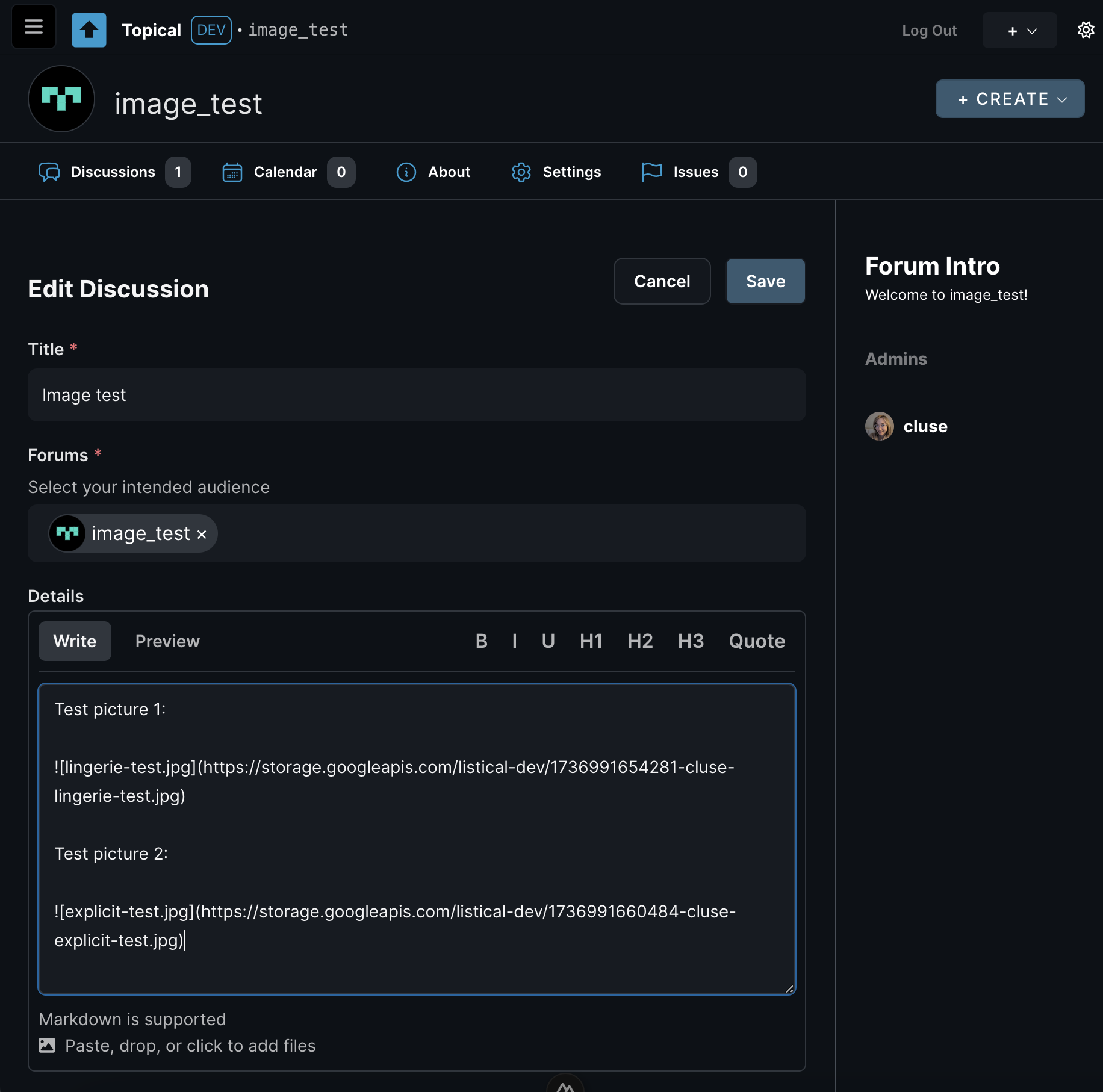
To test it, I ran my database locally, created a forum image_test and a test post called Image test. In Multiforum, the text editor is similar to the text editor in GitHub, which lets you drag and drop images into the text editor to upload them, so that you can easily interleave images in text. So to do this, I dragged the test pictures 1 and 2 into the text editor, and you can see here that they were uploaded because the new image URLs are included there in the markdown:
Results and Conclusion
Then I saved the post, and voilà! Test picture 1 passed the filter, while test picture 2 failed the content check, and it got automatically deleted even before I clicked the save button:
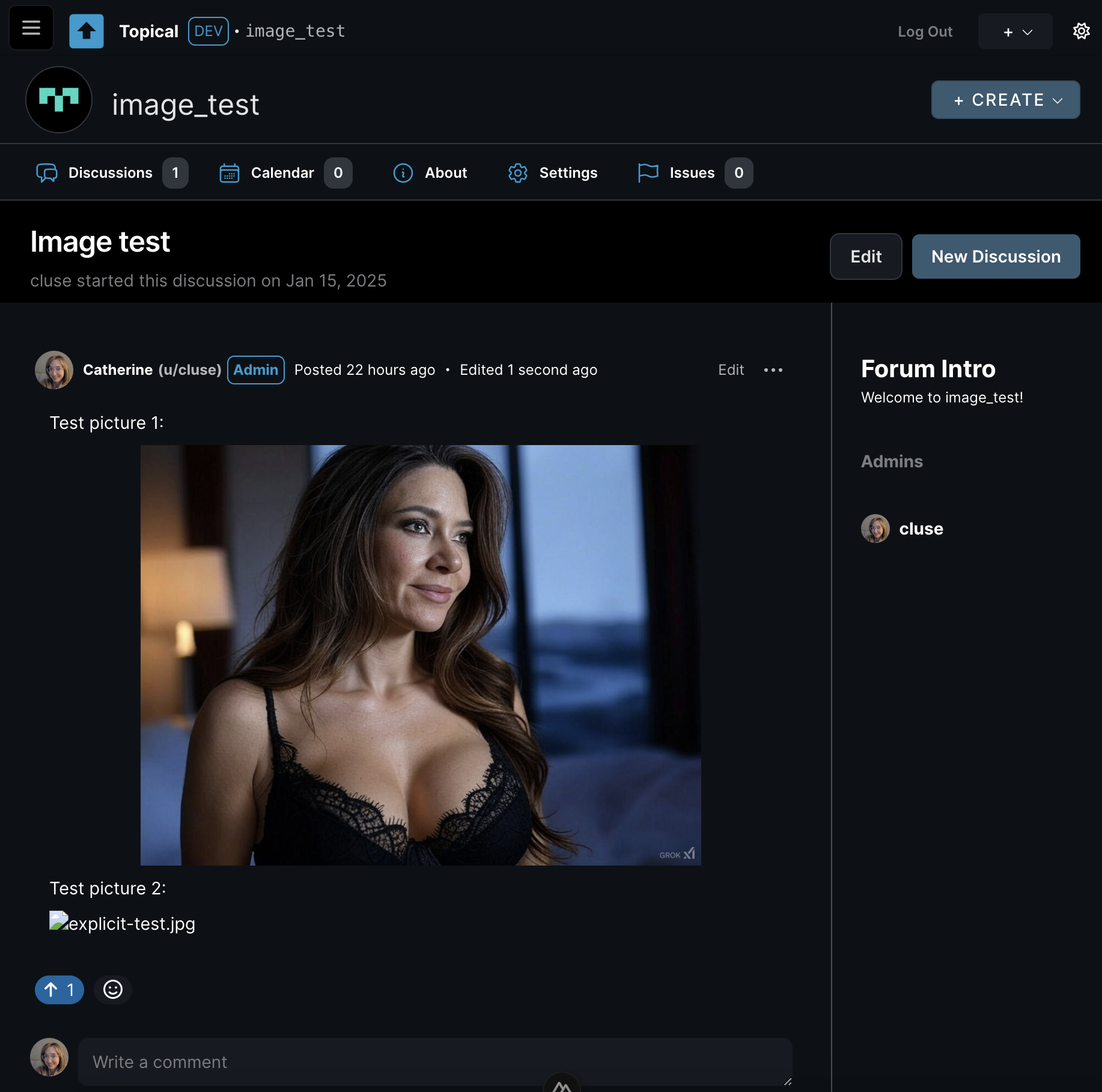
On top of that, I can confirm that it worked by checking the logs in the Google Cloud Platform console, in which I can see that the scanImage cloud function logged Deleted unsafe image: 1736991660484-cluse-explicit-test.jpg.
And that's it. Huge success. In the future, when an image is deleted because of this automated check, I'll send a notification to the user who uploaded it, saying "This image was automatically removed by an AI content filter. AI makes mistakes, so if you think this decision was made in error, please open a support ticket" or something along those lines.
For now, I'm okay with the line being drawn somewhere in between those two test pictures. At least now the line is being drawn somewhere.